The Radar MCP server and integrations with ChatGPT and Claude lets you query your Radar location data in plain language, so you can investigate a user, a device, or an address without writing queries by hand. MCP, or Model Context Protocol, is a standard for connecting AI applications to external tools and data.
Radar is built on location truth: precise, verified location and device signals drawn from over 100 billion observations a year. The MCP server brings that signal into the tools your team already uses, and the answers come with the records behind them so you can check the work.
What stood out to me while working on this is that the data was never the problem; fraud teams already have the location history, device details, and account links. The slow part is stitching them together by hand.
The Radar MCP server is built to let AI take on that stitching for you, so your team can ask a question in plain language and start from the records instead of assembling them. Here is what that looks like in practice.
What can you do with the Radar MCP server in Claude or ChatGPT?
You can query historical location data, view it on a map, and pull the full results out for review. The assistant picks the right tools for each request, so you never write an API call.
The server supports several things:
- Querying locations by user, device, time range, geography, or supported filters.
- Viewing results on an interactive map in Claude and ChatGPT.
- Reading more results page by page, or downloading them as JSON through a temporary link.
- Forward and reverse geocoding.
- Directly query device SDK logs.
- Give users direct links to their dashboard.
An investigation rarely stops at one query, so each follow-up question builds on the one before it.
How do you investigate a suspicious user or device with the Radar MCP server?
Start with the one record that looks wrong, then widen the view until you can tell whether it is an isolated event or part of a pattern. Each step below is one prompt and one follow-up.
Start with one failed location check
Prompt: Why did user 123 fail a location check recently?
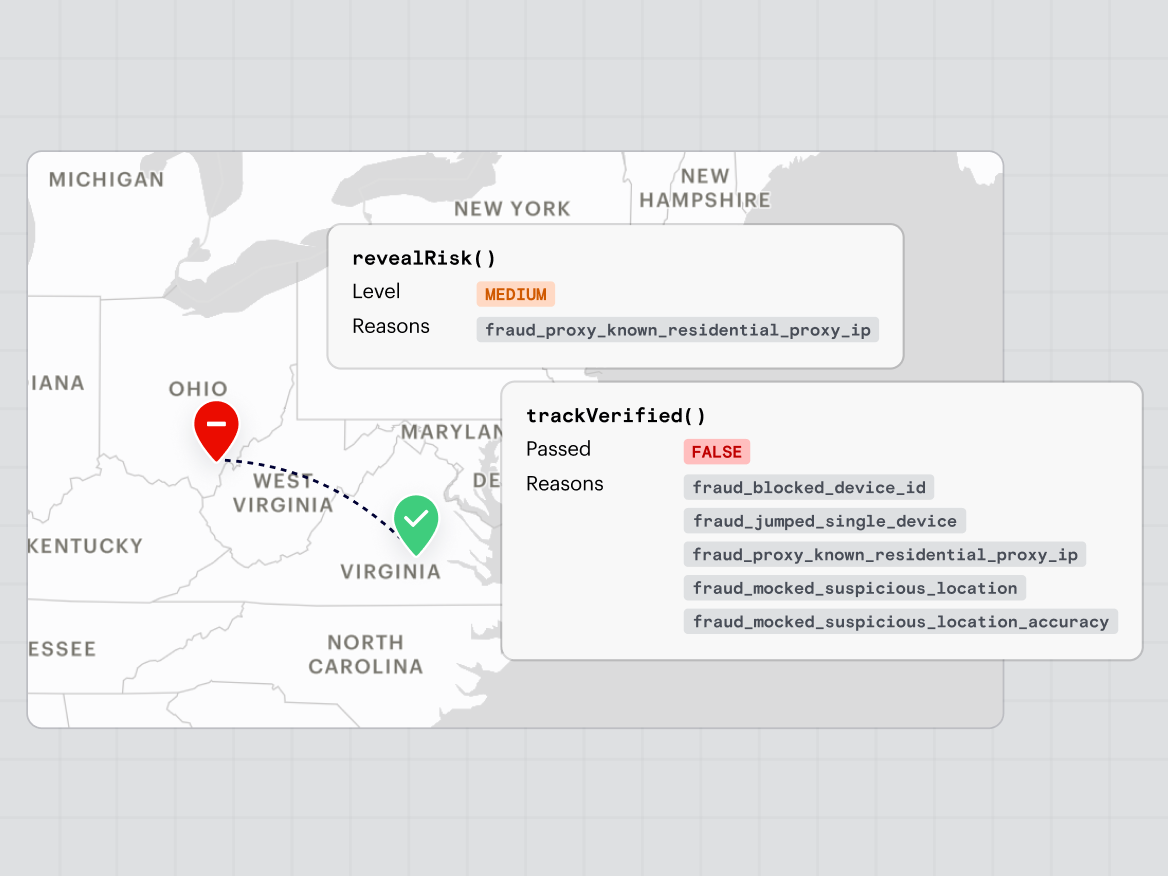
The assistant pulls recent location checks for that user and explains the failure reasons.
Compare a group of users
Prompt: Investigate users 123, 456, and 789 for promo abuse.
The assistant looks across the three users and reports what they have in common, including shared devices, networks, and places.
An analyst sees one iPhone connected to ten other accounts, with activity clustered at two addresses. The assistant lays out the connection and the failure reasons so the analyst can decide what to do.
See everything that happened around one address
Prompt: Find all location checks near 111 5th Ave, NYC yesterday.
The assistant plots the results on a map. Follow up with a question like: Which of these users share a device? That separates activity that’s truly connected from activity that just happens to be nearby.
Hand off the findings
Prompt: Summarize what you found and give me the full list of user IDs.
You can download the complete results as JSON through a temporary link, or ask the assistant to format the user IDs for a handoff.
Every investigation comes down to three questions: what happened, what’s connected, and what’s worth a closer look.
How do you verify what the assistant tells you?
Check the evidence directly: ask for more pages of data, open the map, and review the underlying records before you act. The assistant helps interpret Radar data, and you make the decision.
Two details matter here:
- Results depend on scope. If something looks missing, check the authorized project, the Test or Live environment, the identifier, and the time range. Queries only return data within your retention period. If a query times out, narrow the time range and filters.
- View records directly. The server can provide direct dashboard links to open your records directly for further analysis and review.
No black boxes is a core Radar principle: you see the reasoning and the records, and you decide what to do next.
Can the assistant change or delete my Radar data?
No. The MCP server gives the assistant read-only tools, so it can’ change project settings, create geofences, delete users, or otherwise modify your Radar data. The tools create query jobs and temporary results to retrieve data, and nothing more.
The assistant can investigate, but only your team can act.
What data do Claude and ChatGPT receive, and how long is it kept?
The AI provider receives the tool results used in your conversation. Depending on the query and your permissions, that can include:
- Coordinates and timestamps
- User or device identifiers
- Device information
- Fraud details
A few specifics on how this is handled:
- Credentials: Radar doesn’t send the secret key for your project to the assistant. OAuth grants access without sharing your Radar password with the AI provider.
- Radar retention: Connecting an assistant does not change how long Radar keeps your data. The retention settings for your project still apply. Query results specifically from MCP are kept for up to seven days, separately from the underlying records that were queried.
- After results leave Radar: Once results are in a conversation or downloaded, they fall under the retention policies of your AI provider and your own storage practices. Radar cannot delete those copies.
- Model training: Whether your data is used to train models depends on the terms of your AI provider and your account or workspace settings, not on Radar. Review the data controls of your provider before connecting customer data.
Three habits keep this safe: query only the data you need, treat returned records and download links as sensitive, and never share result URLs publicly, since anyone with a valid link can download the results until it expires.
Your data stays under your control only if the provider settings are right, so check them before you connect.
How is access to my Radar project controlled?
Access is scoped to one project and one environment, and you approve it yourself through an OAuth sign-in. OAuth is a standard way to grant access without handing over credentials.
- The Radar consent screen shows the project, the Test or Live environment, and the requested permissions,.
- Each connection is limited to what you authorized, and Radar checks your current access whenever the assistant uses a tool.
- A prompt cannot switch an existing connection to another project or environment. To change it, disconnect and reconnect.
- To disconnect, remove Radar in the connector or plugin settings of your AI provider. This does not erase records already returned to the provider.
- You can also reconnect directly in ChatGPT or Claude if you’ve previously disconnected; ChatGPT also allows users to have multiple sessions authenticated with the same server at the same time, enabling one for Test and one for Live, for example.
How do you connect Radar to Claude or ChatGPT?
You add Radar as a custom connector using the hosted server URL, then sign in through the Radar authorization flow. Official connectors for Claude and ChatGPT are coming soon.
- Select the intended project and Test or Live environment in the Radar dashboard.
- In Claude, open Customize, then Connectors, and add a custom connector named Radar with the server URL https://mcp.radar.com/mcp. In ChatGPT, turn on Developer mode and add a connection with the same URL.
- Sign in to Radar, review the project and requested access on the consent screen, and select Allow access.
- Enable Radar in a conversation and try a sample prompt.
For Team and Enterprise workspaces, an owner adds the connector first, then members connect their own Radar accounts. Full setup steps are in our MCP documentation.
Who can use the Radar MCP server today?
The MCP server is available to customers whose projects have been enabled. Contact your Radar customer success manager for access.
New to Radar? Book a demo to see how location truth turns into faster, better-supported fraud decisions.